
Microsoft’s Smart Network Data Services (SNDS) is a free monitoring tool from Outlook.com (formerly Hotmail) that gives senders visibility into how Microsoft evaluates the reputation and activity of their sending IPs.
Unlike other deliverability tools that focus on domain-level metrics, SNDS centers its data around IP addresses, IP ranges, and Autonomous System Numbers (ASNs). This means it’s primarily designed for senders who control their own dedicated IP space — typically ESPs or high-volume marketers — and want to see how their mail is treated within Microsoft’s network.
Think of it as Microsoft’s “window” into how your mail is performing across their network — providing insights into spam complaints, traffic patterns, and spam filtering results.
By keeping an eye on SNDS data, senders can catch reputation issues early, improve inbox placement, and maintain healthy deliverability to Microsoft’s consumer domains like Outlook, Hotmail, and Windows Live.
Getting Started: Setting up SNDS Access
Because SNDS is IP-based, you’ll need to verify access for each IP address (or IP range) you send mail from. Once authorized, you can view real-time data on message flow, reputation indicators, and spam trap hits associated with those IPs. For any sender managing their own IP space, this insight is invaluable — you’re essentially getting data straight from the source.
Requesting Access for Your IPs or ASN
- Use a Microsoft Account: Access requires a Microsoft Windows Live ID (Outlook or Hotmail account).
- Identify Your IPs: Navigate to the Request Access page and enter the IP address(es), IP range, or ASN that you use for sending email.
- Authorization Email: To initiate a request to the IP owner, you must select one of the authorization email addresses provided by Iterable.
- Approval: Once the IP owner approves your request, you’ll be able to see the data. Please note this may take 24-48 hours to complete.
Note: SNDS access is only available to senders on dedicated IPs. If you’re using shared IPs, Microsoft restricts access for privacy reasons.
Deliverability Metrics and Dashboards
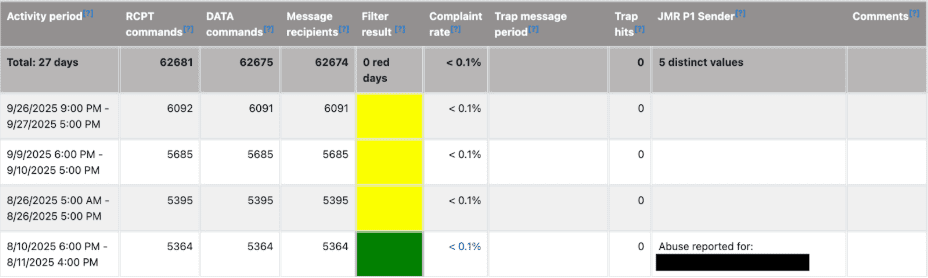
Once you’re in, you’ll land on the primary data view, which lists each of your authorized IP addresses alongside metrics that reflect your sending behavior and reputation.
Note: SNDS will only display data for IPs that have sent at least 100 messages in a single day.
These metrics can feel technical at first glance, but they’re powerful once you know what to look for. Let’s break them down.
1. Traffic Data (Protocol Command Counts)
SNDS provides unique, detailed metrics on the underlying SMTP protocol commands— essentially, what happens “under the hood” during email delivery. This can help detect nefarious activity like namespace mining or highlight list hygiene issues. Some of these metrics are a little technical, so bear with us.
| SMTP (Simple Mail Transfer Protocol): SMTP is the standard protocol used to send and relay email between mail servers. SNDS tracks SMTP command counts (like RCPT and DATA) to help identify abnormal sending behavior or potential abuse. |
|
Metric |
Description |
Indicator of Problem |
|
RCPT Commands |
The number of intended recipients your IP requested mail be sent to (RCPT TO:). |
A high percentage of RCPT commands that do not result in a message recipient (Delivery Errors) indicates namespace mining, which is the process of guessing or generating possible email addresses at a domain to find valid recipients. |
|
DATA Commands |
The number of times your IP transmitted a message body (DATA). |
Discrepancies between DATA and successful deliveries may suggest message rejections. |
|
Message Recipients |
The actual number of recipients of messages transmitted. |
The discrepancy between this number and RCPT Commands would be a bounce rate, which can occur due to list hygiene or bad actors. Research into bounces is needed. |
2. Filter Result
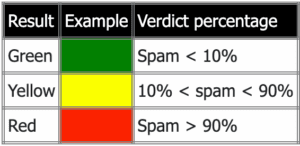
The Filter Result offers a snapshot of how Microsoft’s spam filters treat your traffic — categorized into color-coded reputations (Green, Yellow, or Red).
A “Green” rating means your mail is generally trusted, while a “Red” result indicates that over 90% of your mail was filtered as spam. However, treat this as one piece of a larger puzzle. Even “Green” mail can sometimes land in spam depending on user engagement and content signals.
Tip: Think of Filter Result as a temperature check — if it spikes red, investigate what changed recently in your sending patterns or content.
3. Complaint Rate (Spam Rate)
This is the number of spam complaints received divided by the number of message recipients. When a user clicks on “Report Spam” or moves to the spam folder, this will count as a spam vote.
Sometimes, Microsoft will share a sample of a message that a subscriber marked as spam. When this occurs, you’ll see the complaint rate as a hyperlink that you can click on to see the sample.
- Goal: Senders should aim to keep their Complaint Rate under 0.3%.
- Note: SNDS displays complaints for the day they were reported, not the day the email was delivered.
Pro Tip: High complaint rates often trace back to sending frequency, unwanted content, or unengaged lists. Segment based on engagement to reduce complaints over time.
4. Trap Message Period and Hits
Spam traps are email addresses that exist solely to catch senders who aren’t following best practices.
If your SNDS report shows Trap Hits, it means you sent mail to at least one of Microsoft’s trap accounts — a strong sign of poor list hygiene or lack of engagement-based segmentation. These trap accounts do not sign up or solicit mail, so if you’re running into traps, you should review your acquisition process.
When traps are hit, SNDS will show a Trap Message Period, which marks the first and last trap hit within a given timeframe. If you hit multiple traps in a period, the times will reflect when you hit the first trap and the last trap within that period. If no traps were hit, this field will remain empty.
Note: Any trap hit should trigger an immediate investigation into the source of the traffic and list collection practices to correct the issue or prevent it from happening again. We recommended using double or confirmed opt-in for sign-ups.
5. JMR P1 Sender (Complaints)
Under the “Comments” column in your data view, you will see notes about the status of your IP.
- Abuse Reported: This comment appears when users have submitted spam complaints, and Microsoft sends these complaints to the sender via their Feedback Loop or Junk Mail Reporting Program (JMRP)
- JMR Block: This comment appears when an IP is blocked due to abuse complaints.
Note: When an IP is blocked, you must use the Outlook.com Deliverability Support form to request delisting.
While SNDS lacks the glossy dashboards of some deliverability tools, its raw insights are invaluable. It gives you a direct line of sight into how Microsoft perceives your sending behavior — something no third-party platform can replicate.
Frequently Asked Questions about SNDS
1. What should I do if my IP is showing a “Red” filter result?
A “Red” result indicates that over 90% of your mail is being filtered as spam. You should immediately:
- Check Complaints: Analyze specific campaigns/messages causing complaints.
- Review Traffic Data: Look for high discrepancies in RCPT commands vs. Message Recipients, which could indicate list quality issues causing higher bounces.
- Clean Your List: Aggressively remove unengaged users and invalid addresses.
2. How much volume is necessary to see data?
Your IP must send a minimum of 100 messages on a given day to generate and display data for that day.
3. How far back does the data go?
SNDS typically provides access to the past 90 days of data.
4. Are users who report spam complaints opted out?
Yes — Microsoft’s feedback loop ensures that users who mark your emails as spam are immediately unsubscribed on your end.
To minimize these complaints, follow email best practices for targeting, content, and cadence. For deeper guidance, check out Maximizing Email Deliverability.
5. Can I access SNDS if I’m on shared IPs?
No. SNDS data can expose sensitive IP-level information, so only dedicated IP owners are eligible for access.
Turning SNDS Insights into Actionable Deliverability Improvements
Microsoft’s SNDS may not be the most intuitive or visually exciting tool, but its insights are foundational for understanding and improving deliverability. By consistently reviewing SNDS data — especially Filter Results, Complaint Rates, and Trap Hits — you can keep your sender reputation strong and ensure your emails reach the inbox where they belong.
| Dive deeper with Email Deliverability 101: How to Reach the Inbox Every Time — your step-by-step guide to understanding reputation, authentication, and inbox placement across major ISPs. |